CLIENTS

Every client, managed from one page.

EVO TrustGuard is client management software for guard, EP, and patrol companies: on TrustGuard Business a hired lead becomes a client without retyping, and one page then holds that client's contacts, services, contracts, billing, documents, notes and history.

Part of TrustGuard Business, $199 a month.

How it works

From hired lead to a record your whole team can work.

From the signed contract to the whole account on one page.

Set the lead to Hired, or let them sign.

On TrustGuard Business, setting a lead to Hired, or a signed contract coming back, creates the client with the name, contact and address on file and a first service holding every assignment from the lead's Client Information Sheet. Setting Hired shows a Client created message with a View Client button.
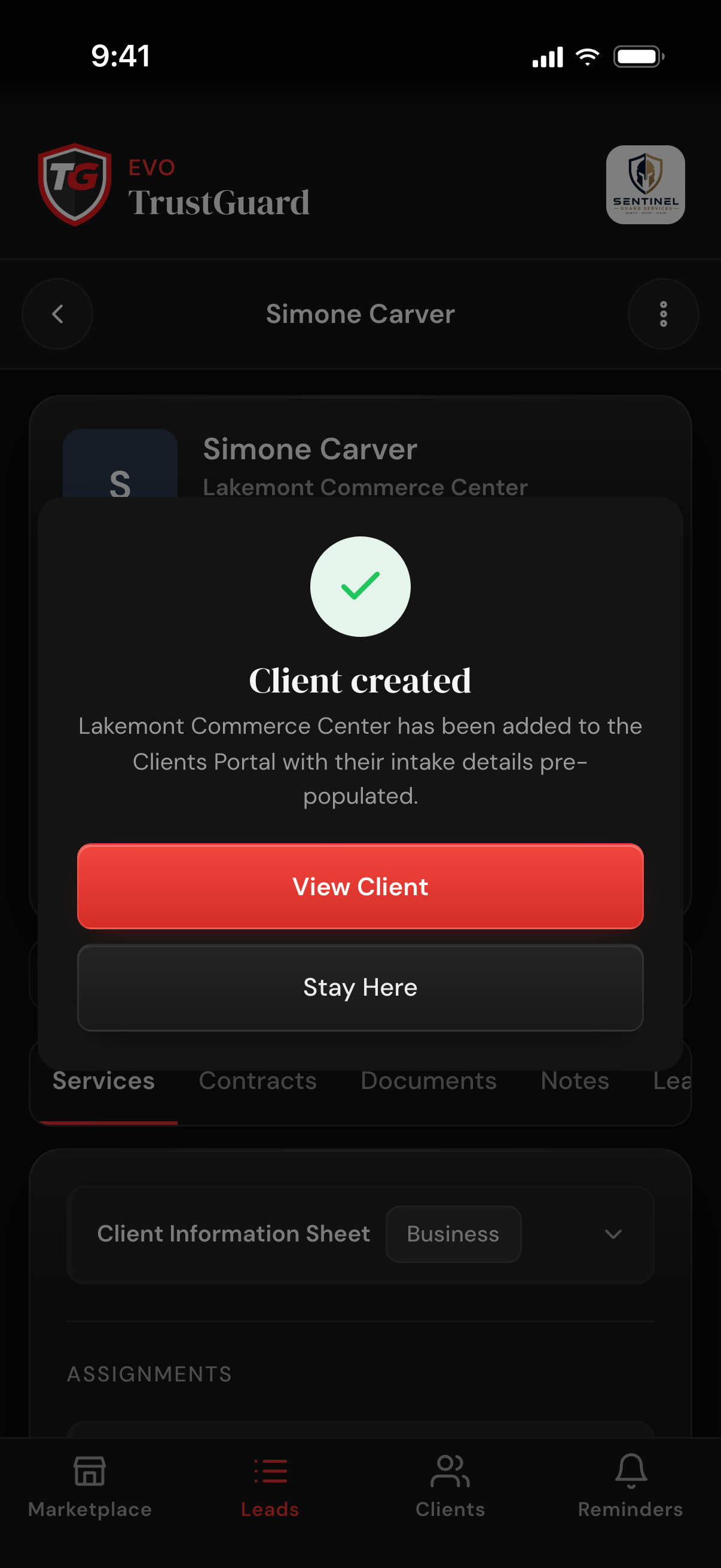
The Client created message shown after a lead is set to Hired, saying the client was added with its intake details filled in, with View Client and Stay Here buttons

Add the clients you already have.

Tap + Add Client, pick Business, Individual or Government, and enter the name, point of contact, phone, email and address. Saving opens the client's page. The Clients list filters by status, searches by client or contact name, and stars favorites on top.
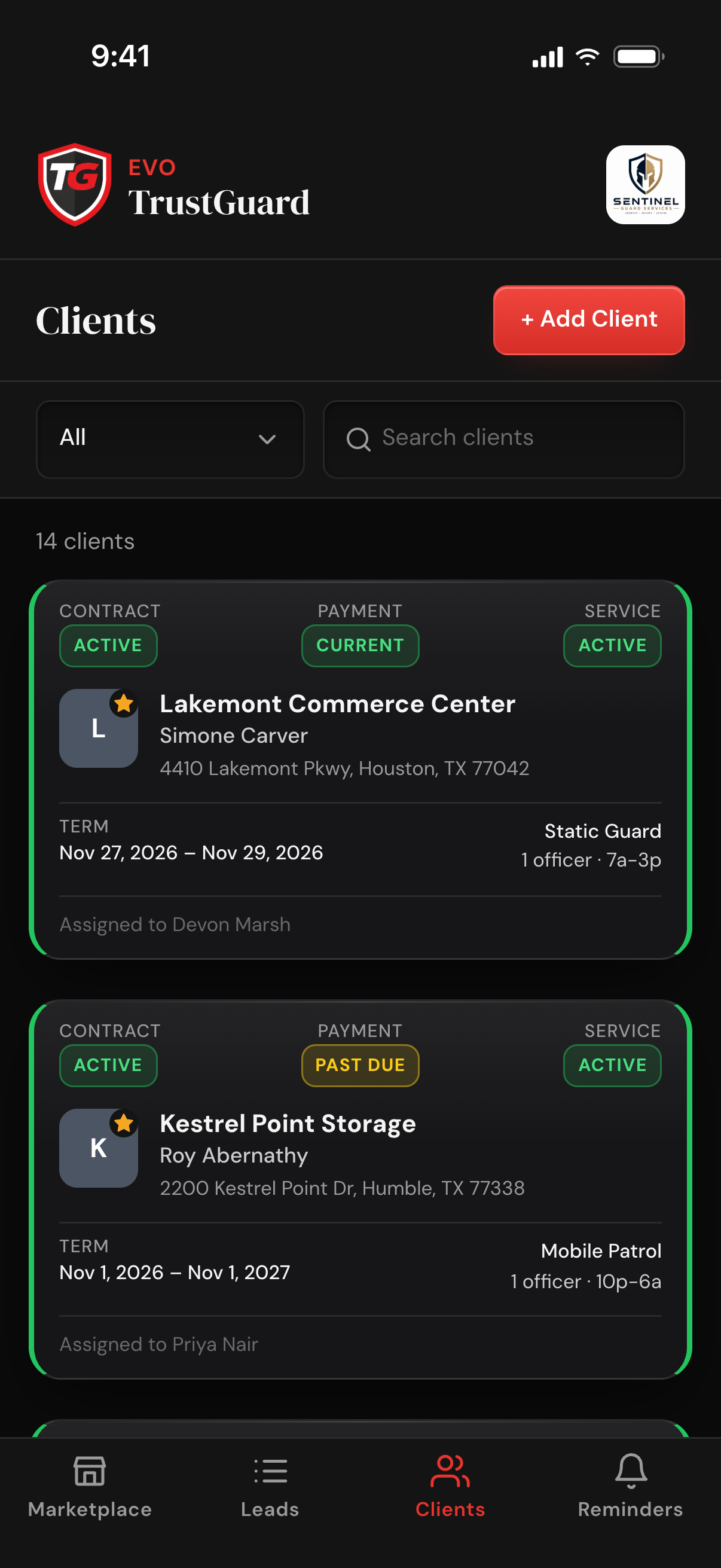
The Clients list with an Add Client button, a filter, a search box and client cards showing Contract, Payment and Service status pills, the contact, the address, the term, the service and the assigned team member

Open the client and reach them in one tap.

The header shows the client, the point of contact and Lifetime Revenue, with one-tap Call, Email and Text. With more than one number on file, Call and Text ask who first. Email opens a compose sheet in the app with your saved templates, and replies land in your own inbox.
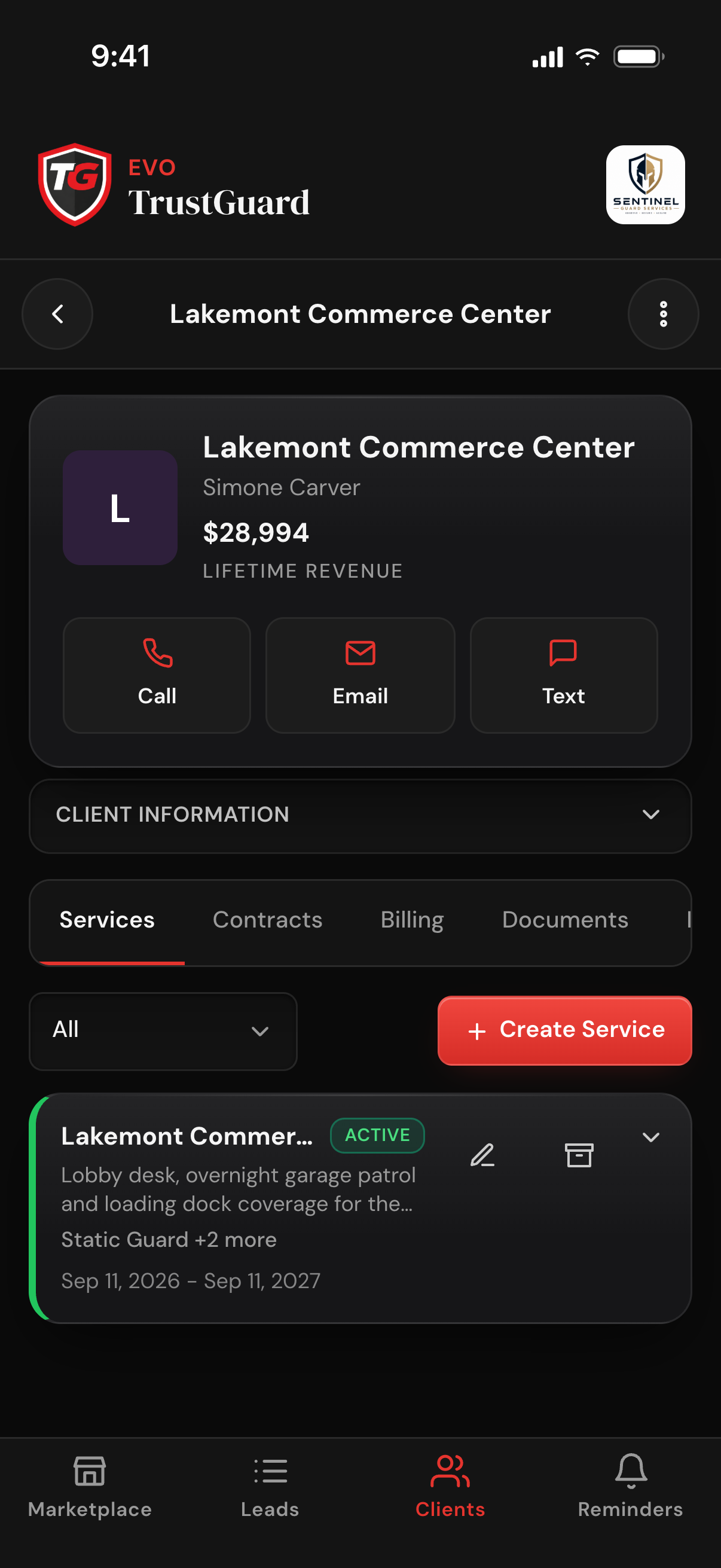
A client's page header with the business name, the contact, Lifetime Revenue and Call, Email and Text buttons, above the tabs and the Services tab with one active service

Set up the work, then send everything from it.

On the Services tab tap Create Service: fill in the form, or paste an email or notes or upload files and let the AI fill the assignment for you to review. An open service has Save plus More actions: Send Quote, Send Contract, Send Post Order, Invoice (once Stripe is connected) and Download, the Client Information Sheet as a PDF.
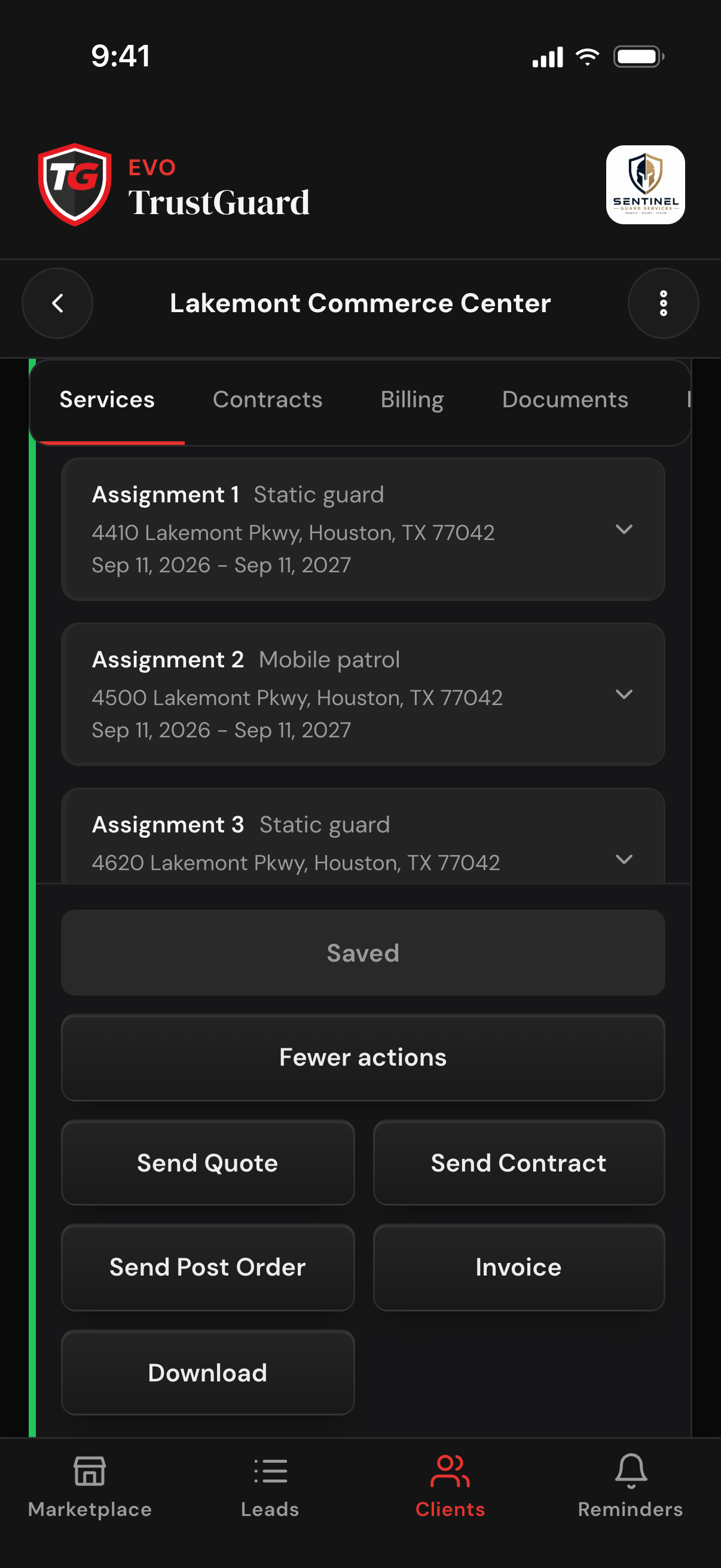
A client's Services tab with three folded assignments, a Saved button and More actions open: Send Quote, Send Contract, Send Post Order, Invoice and Download

Hand the client to a team member and keep the record.

Choose the Assigned team member in Client Information, and that client's contracts, services and assignments follow the same person. A rep sees only their assigned clients unless you turn on see all records. Client History lists contracts, assignments, invoices and sends by date.
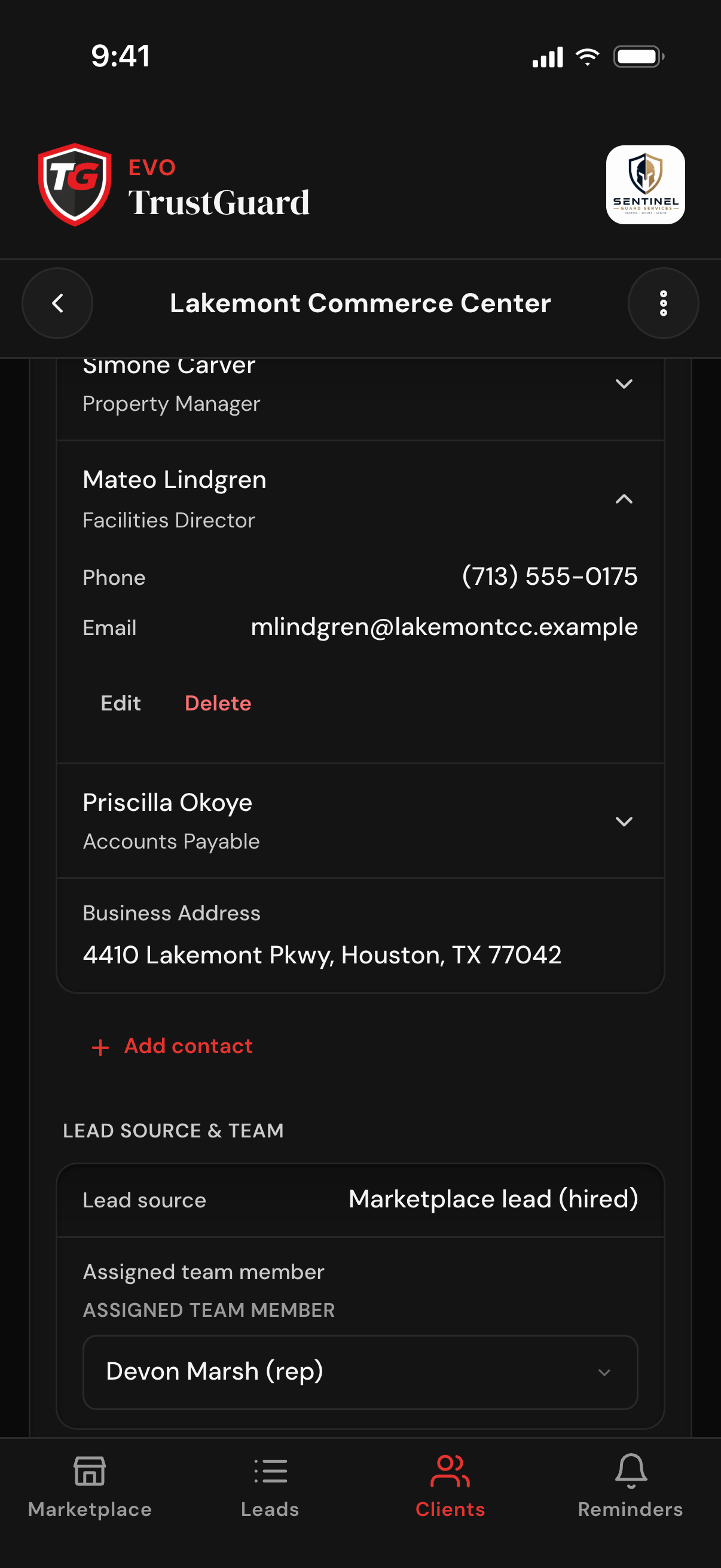
A client's Client Information panel: contacts with one opened to show a phone and an email, the business address, an Add contact link, the lead source and the assigned team member, a rep
Client management

Every contract, service, invoice and document, one page.

Stop keeping clients in a spreadsheet, contracts in folders, invoices in an accounting app and notes on your phone. Every client lives on one page.

The full client picture on one page.

Contacts, address, services, contracts, invoices, documents and notes, plus Client History: contracts, assignments, invoices and the quotes, post orders and documents sent, newest first, with the sender's name on each send.

Status at a glance.

Contract, Payment and Service pills on every card show who is active, who is past due and whose work starts next. They come from the contract, the assignment dates and the invoices, never from a switch.

Post orders built from the client record.

The site, service type, schedule and point of contact come from the client record and the assignment, nothing retyped. Send Post Order is one of the service's actions; you pick the recipients and preview it before it goes.

Built for ongoing client relationships.

Add new work to an existing client without rebuilding the record: start from Populate from Previous Assignment or tap Duplicate on any assignment, then change what differs. An archived client comes back with Restore under the Archived filter.

FAQ

Questions, answered

Do I have to re-enter a lead's details when they hire me?

No. On TrustGuard Business, set the lead to Hired, or let them sign the contract you sent, and the client is created with their name, contact details and the services you already priced.

Can I add the clients I already have?

Yes. Tap + Add Client and enter the client type, name, point of contact, phone, email and address. Saving opens the client's page, and each client is added from that form, one at a time.

What do the three labels on a client card mean?

Contract shows whether a signed contract is in force, and reads Pending while a draft or sent contract exists. Service shows whether work is about to start, running, or over. Payment shows Current, Pending, Past Due or Inactive from that client's invoices. All three update on their own.

How do quotes, contracts and invoices reach my client?

By email. The client page is your record: quotes, contracts to sign, documents and, once Stripe is connected, invoices reach your client by email, and replies to the emails you write come back to your own inbox.

Is Clients on the free plan?

No. Clients is part of TrustGuard Business, $199 a month, along with quotes, contracts, post orders and invoicing. On the free TrustGuard Marketplace account, marking a lead Hired changes the lead's status only, and no client record is created.

Ready when you are

The future of how security companies will operate starts here.

Spreadsheets, folders, generic CRMs, scattered tools, hours of retyping. That doesn't have to be how you run your business anymore. Join the platform that was built for you.

Get started
Month-to-month billing. Cancel anytime.